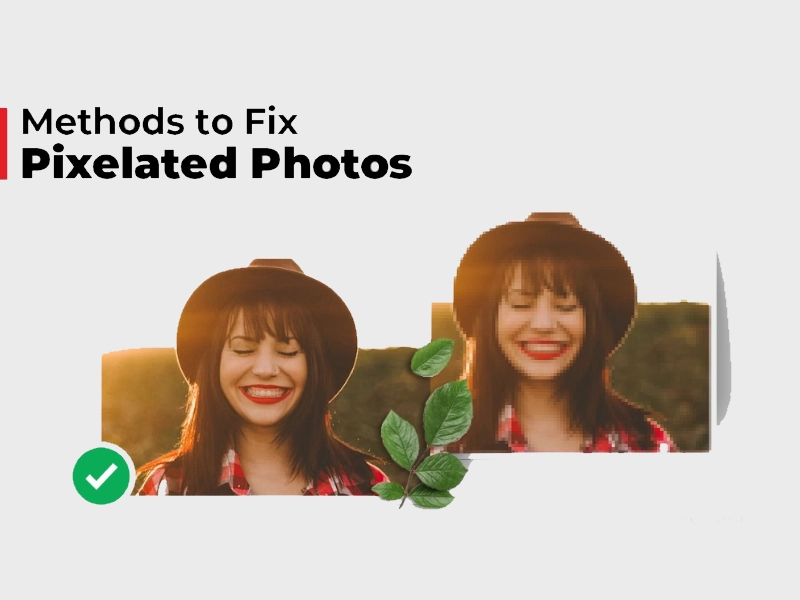
Ever wondered what if your important JPEG photo suddenly starts appearing pixelated or distorted? Whether the pixelation or distortion is caused by excessive compression, low resolution, repeated editing, or improper resizing, these imperfections can significantly degrade image quality.
It is important to immediately proceed with adequate photo repair workarounds to fix your damaged photos.
Fortunately, several techniques and tools are available to repair and enhance such images.
In this article, we’ll explore different causes of JPEG distortion and quick photo repair workarounds to repair pixelated photos effectively.
Understanding JPEG Pixelation and Distortion
Before diving into different photo repair workarounds to fix your JPEG photos, it’s important to understand what causes these issues.
Your image is said to be pixelated when it is enlarged beyond its original resolution, which makes individual pixels visible. Instead of smooth transitions, the image appears blocky and unclear.
JPEG distortion, on the other hand, is usually caused by compression. JPEG is a lossy format, meaning it reduces file size by discarding some image data.
When your image is compressed too much, or the compression is applied repeatedly, it results in artefacts such as blurriness, colour banding, and blocky patches.
Why Do JPEG Photos Appear Pixelated and Distorted?
Understanding the exact cause of your JPEG photo corruption or distortion helps you determine adequate photo repair workarounds. Some main reasons include:
- Excessive compression removes significant image data, causing visible artefacts, colour banding, and blocky distortions that reduce overall clarity and detail quality.
- If the file transfer is interrupted during upload or download, it can corrupt JPEG data and lead to incomplete images, missing sections, or unusual colour and display issues.
- Malicious programs like viruses or malware can modify or delete parts of JPEG files, causing severe corruption, distortion, or complete inaccessibility of the affected images.
- Damaged metadata or file headers disrupt how JPEG images are read, causing display errors such as partial images, incorrect colours, or failure to open.
Quick JPEG Repair Methods to Fix Pixelated or Distorted Photos
In this section, we’ve outlined various photo repair methods that you can try to fix your pixelated or distorted JPEG photos. Just go with the methods below one by one to repair your JPEG photos:
Method 01: Change Your Photo Viewer App
In some cases, using a different photo viewer application to open your JPEG images can help minimise or reduce visible distortion.
You can try Windows’ built-in photo editors or any professional tool that offers features such as sharpening, which enhances edges and improves overall clarity, making the image appear more defined.
While these tools are not powerful enough to fully restore lost details or completely fix heavily damaged images, they can significantly enhance the overall appearance.
Method 02: Resize JPEG Image Properly
If pixelation is due to enlargement, resizing the image down slightly can help. You can reduce the image size by 10–20% and avoid stretching images disproportionately. Follow the steps below to resize your JPEG images:
- Firstly, open your JPEG in a photo editor like Microsoft Paint, Preview, or Adobe Photoshop.
- Look for options such as “Resize,” “Image Size,” or “Scale Image” in the menu.
- Enable “Maintain aspect ratio” (or “Lock proportions”) to prevent stretching or distortion.
- Configure width or height in pixels or percentage and click Apply to resize the image.
- Save as JPEG with high quality (80–100%) to avoid additional compression loss.
Method 03: Repair Through an Error-checking Tool
Windows offers an in-built error-checking tool that you can use to resolve JPEG image damage. These tools scan your storage device—such as a hard drive, USB, or memory card—for inconsistencies and attempt to fix them automatically. All you have to do is:
- Right-click on the folder where your damaged JPEG Files are saved.
- Choose Properties, go to Tools, and click “Check”.
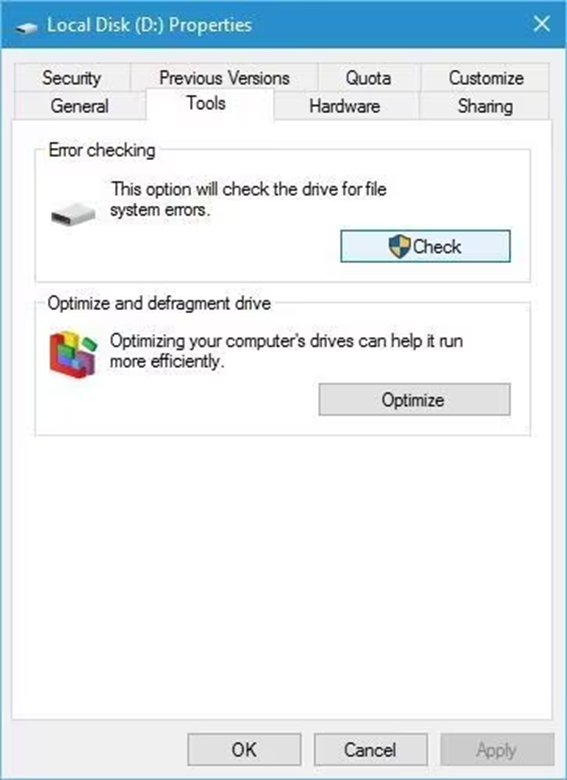
- Now, click Scan Now and wait till the system scanning is completed.
- If there is any issue with the files stored in that folder, it will be automatically fixed.
Method 04: Repair Photos Using Third-Party Software
If the above DIY methods to repair pixelated or distorted JPEG photos fail, you can try third-party JPEG repair software. Tools like Stellar Repair for Photo are especially designed to fix issues such as pixelation, distortion, header corruption, and incomplete images. The software supports repairing damaged photos stored on SD cards, hard drives, and other internal or external storage media. One of its key advantages is its ability to repair multiple images at once while preserving the original quality as much as possible.
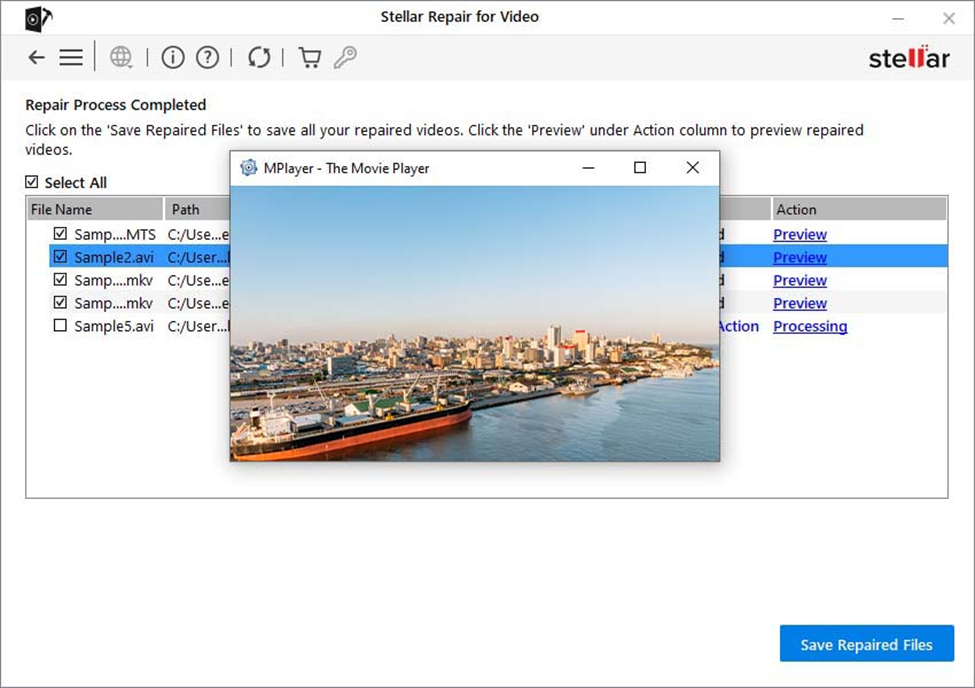
Key Features of Stellar Repair for Photo Tool:
- Repairs corrupted, pixelated, blurry, and distorted JPEG images by fixing damaged data, restoring clarity, and improving overall visual quality effectively.
- The Advanced Repair feature uses a reference sample image from the same device to repair severely corrupted photos more accurately.
- Supports batch processing, allowing you to repair multiple corrupted photos at once, saving time and effort during large recovery tasks.
- Works with various storage devices, including SD cards, USB drives, and hard disks, and supports multiple image formats beyond JPEG.
Conclusion
Repairing pixelated or distorted JPEG photos may seem like a challenging task, but the aforementioned free JPEG repair fixes can help you easily repair your photos. While basic tools like sharpening and resizing can improve appearance, more complex cases may require advanced methods such as third-party photo repair software like Stellar Repair for Photo. The key lies in understanding the nature of the distortion and applying the appropriate solution. With patience and the right approach, even heavily distorted JPEG photos can be transformed into clear and visually pleasing images.
Frequently Asked Questions (FAQs)
How can I fix a pixelated JPEG photo?
You can use basic editing tools like sharpening, noise reduction, and slight resizing to quickly improve image quality with minimal effort.
Are third-party photo repair tools effective for repairing JPEG images?
Yes, third-party photo repair tools like Stellar Repair for Photo are effective in repairing corruption, reducing distortion, and restoring image structure.
How can I prevent JPEG distortion in the future? Avoid repeated saving, use high-quality settings, maintain original resolution, and store images safely to prevent JPEG corruption or quality loss.